









piegatrice elettrica
Manuale di istruzioni
Wuxi Smart CNC Equipment Co., Ltd.,
Prefazione
Introduction to the content
This manual mainly introduces the installation, technical specifications and application examples of pure electric press brake control system products. The chapters are summarized below:;
·Chapter 1 (Operation Panel) describes the use of the operating panel of the press brake control system;
·Chapter 2 (Application Examples) shows how to operate the control system with examples;
·The appendix provides common problems for each device of the system for quick browsing
Oggetto applicabile
This manual provides an introduction to the pure electric press brake control system, which is convenient for users and commissioning personnel to master the use of pure electric press brake machine as soon as possible
1.1Basic page introduction
1.1.1 Pagina di programmazione
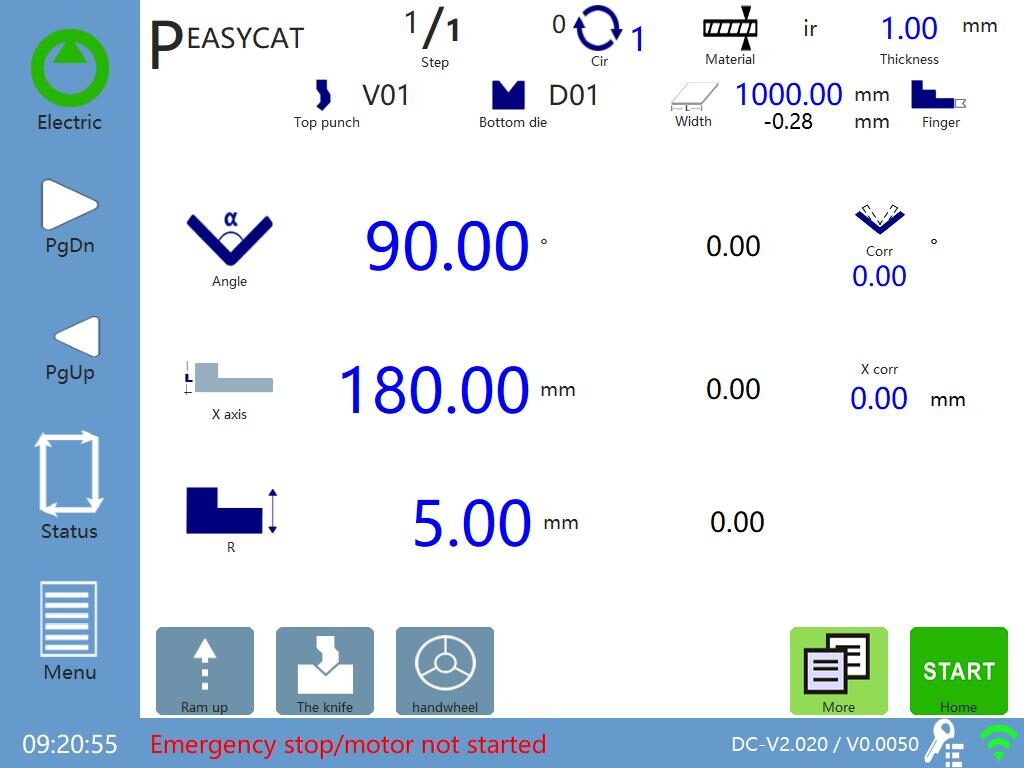
The following figure is the home page of bending machine control system programming.
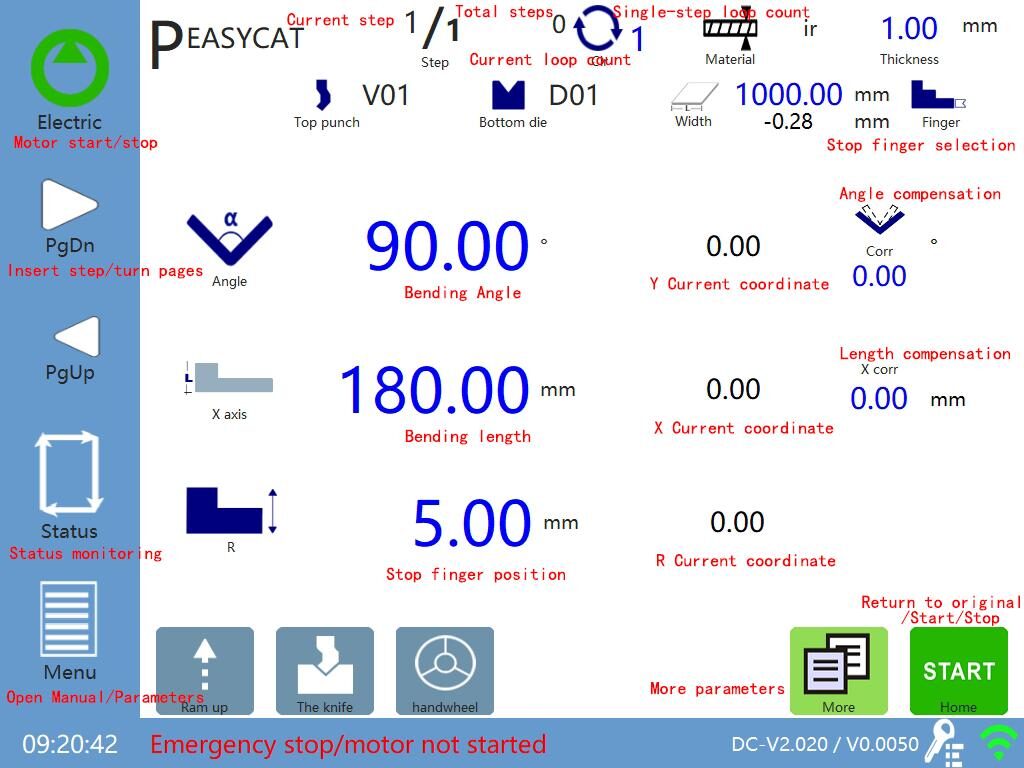
1.1.2 More Data Settings
Click on the icon on the main page of programming,You can access more data settings pages:

Table 1-1 Introduction of Parameters (1)
parametro | Definizione |
|---|---|
Spessore della piastra | Thickness of individual workpiece |
Ritirare la distanza | The concession distance of the shield (X-axis) can be set at each step. (Enter the yield distance in the rear field) |
Rising height | The return distance of the upper die (Y-axis), timed from the shift point, |
Tempo di sosta | The time from the speed change point to the start of the pressure relief of the machine (set at each step) |
Job count | Number of currently processed jobs/total set jobs, Indicates unavailability |
Pressione di flessione | Pressure applied in bending |
Click to display more data settings:
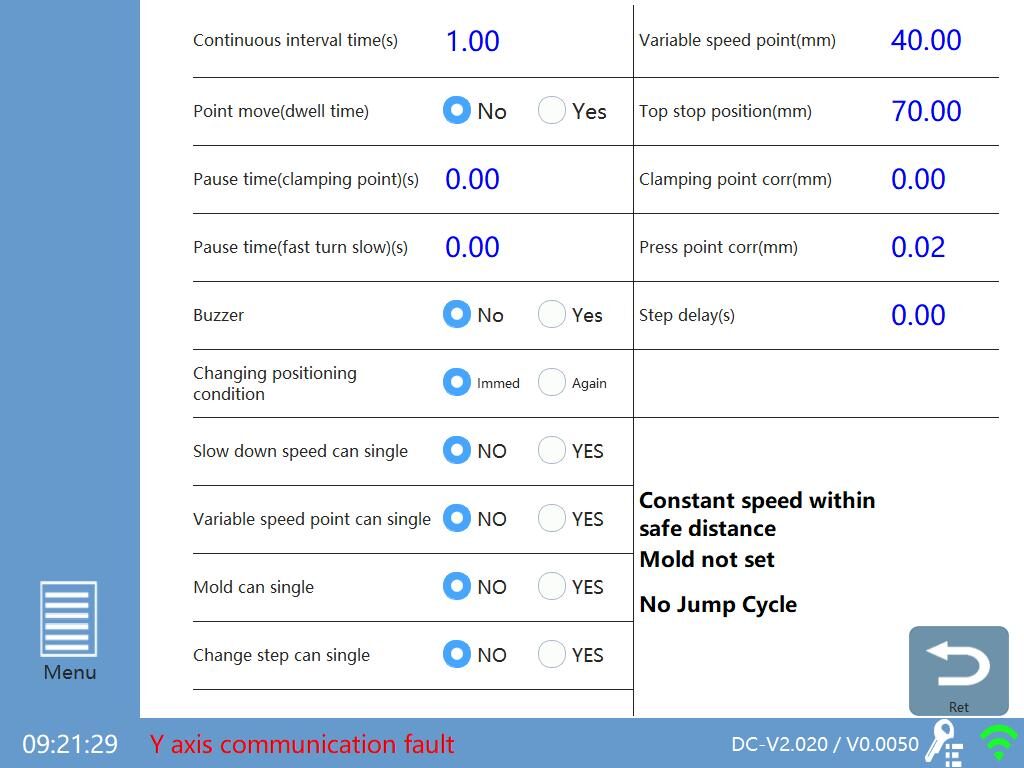
Table 1-2 Introduction of Parameters (2)
Parametro | Definizione | Osservazione |
|---|---|---|
Point move (dwell time) | If effective, to the pressure holding time to stop slow down and pressure relief, after the completion of pressure relief does not automatically return | If you release the foot after stepping down to the speed change point, the device will automatically relieve pressure |
Intervallo di tempo continuo | If it is continuous, the step change execution delay time | Cellula |
Mute point | The slider changes from fast down to slow down position | Effective when grating ruler is selected |
Top stop position | Top of the slide travel | Effective when grating ruler is selected |
Clamping point corr | Compensation is made according to the position of the clamping point | Cellula |
Tempo di pausa (punto di bloccaggio) | The pause time when the slider changes from slow down to clamping the workpiece | Wait until the X-axis is back positioned (or after the pause time) and continue to slow down, if the pause time is set to 0, it will continue to slow down and bend |
Pause time (speed change) | The stop time of the slider from fast down to slow down (that is, to reach the speed change point) | After this pause period, slow down again, if the pause time is set to 0, the slider will directly turn fast down and slow down |
The tool alignment process instructions:
Step 1
After turning on the machine, find the "Motor" button on the left sidebar.
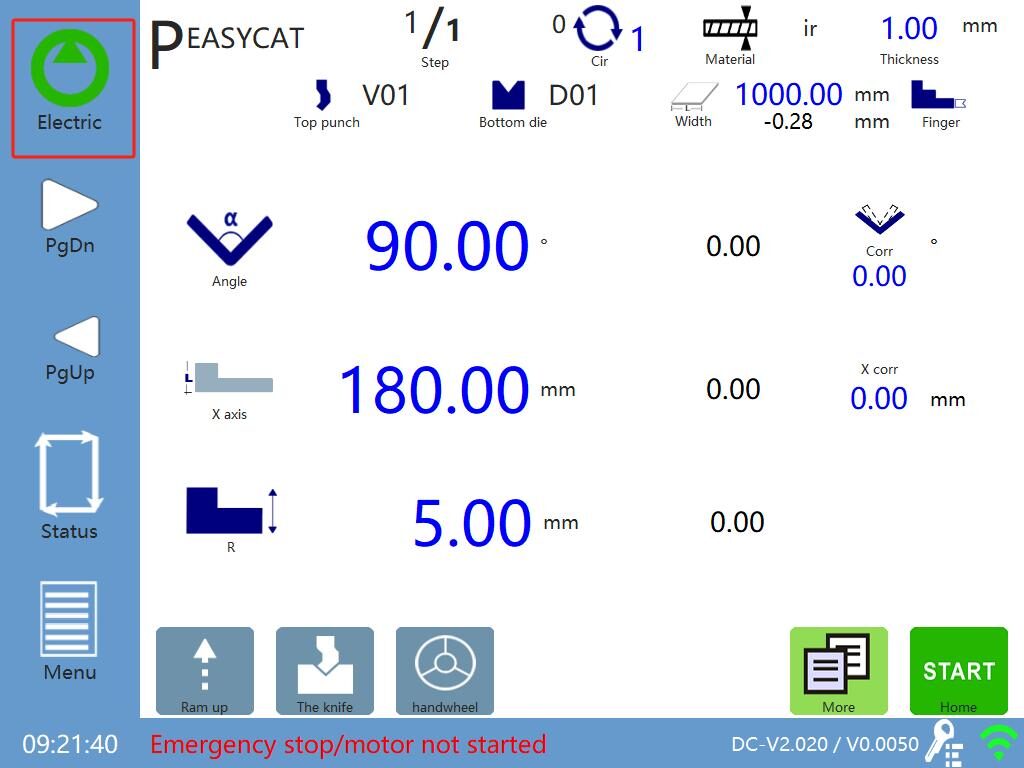
Press and hold the motor button for 3 seconds to enable the motor until the button turns from green to red.
Step 2
Click on the "Top Mold" and "Bottom Mold" buttons in sequence to check and confirm whether the current mold parameter configuration is consistent with the actual mold physical parameters.
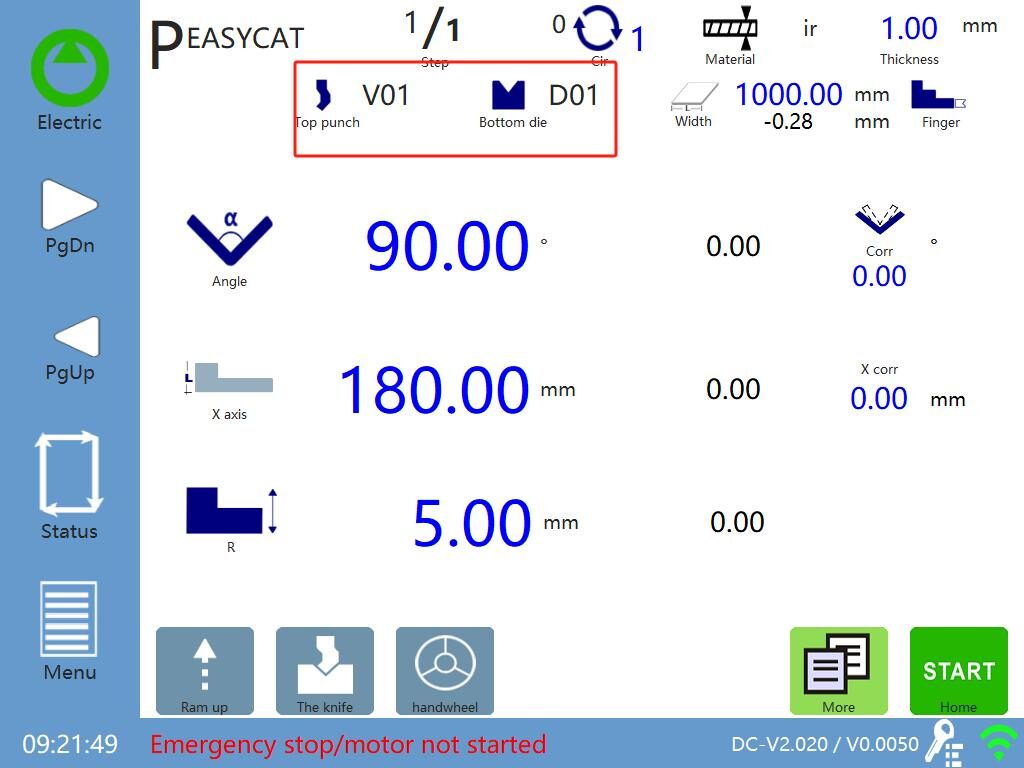
If they are not consistent, you can click on each parameter in this interface to set and enter the real mold information.
Step 3
Find the "The kenife" button at the bottom of the programming interface and click to enter the tool alignment interface.
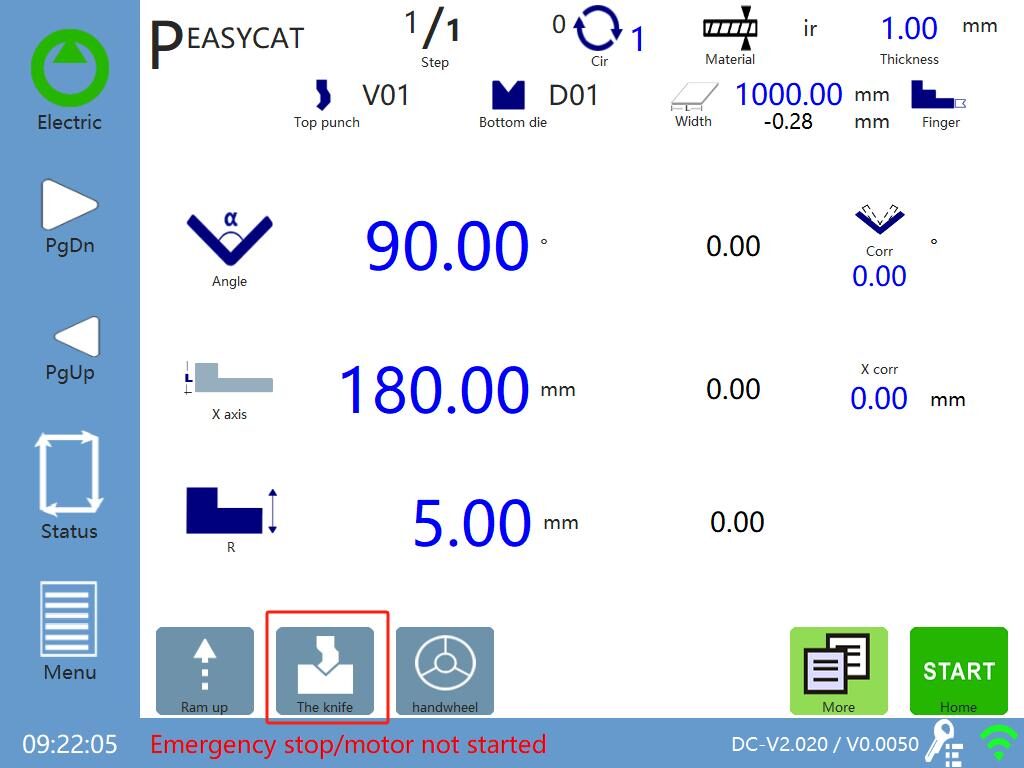
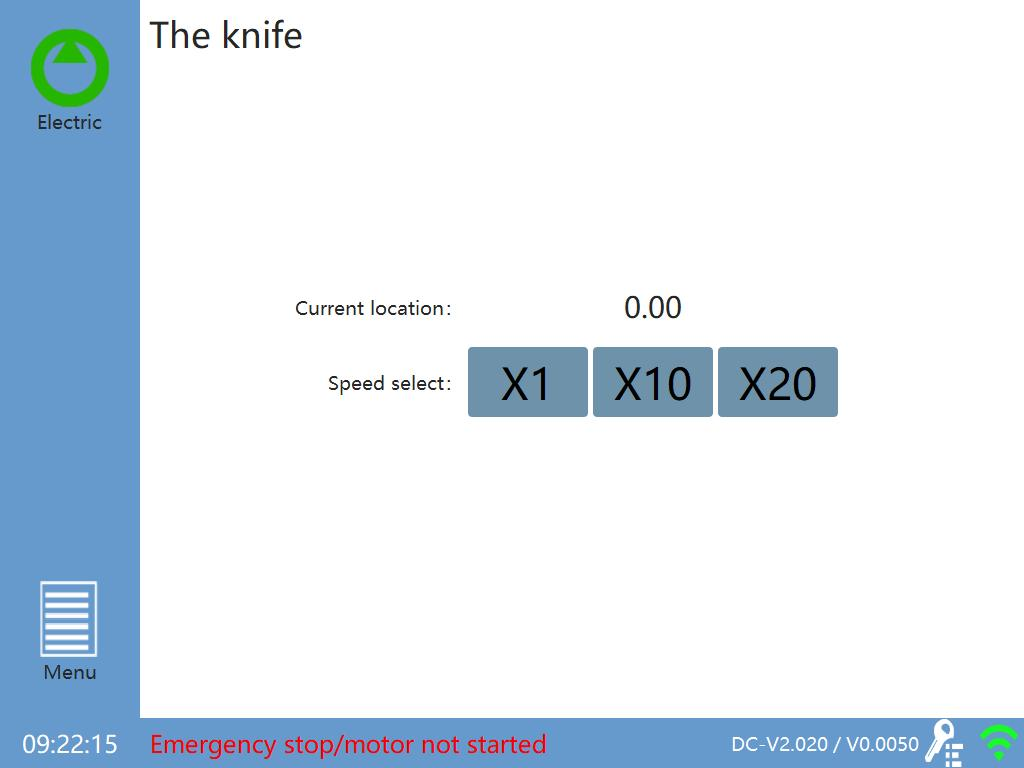
Step 4
After entering the tool alignment interface, rotate the handwheel on the machine to control the slider to move down. You can choose to use the 20x handwheel rotation speed to accelerate the slider's downward movement.
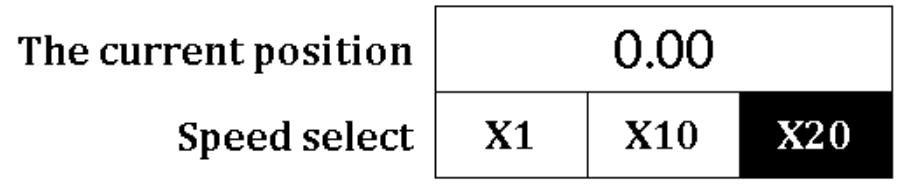
Continue to rotate the handwheel until the distance between the upper mold tip and the lower mold is about 1 millimeter. Temporarily stop rotating the handwheel and prepare to switch the rotation speed to prevent high-speed impact between the upper and lower molds.
Step 5
Click to switch the handwheel rotation speed to 1x and continue to rotate the handwheel to control the slider to move down.

Continue until the upper and lower molds are closed, and the system prompts that the set torque has been reached. Stop rotating the handwheel and click the "Calibrate" button to calibrate the current coordinate to zero. The tool alignment operation is now complete.
Step 6
Click the "Menu" button to exit the tool alignment interface and return to the main programming interface.
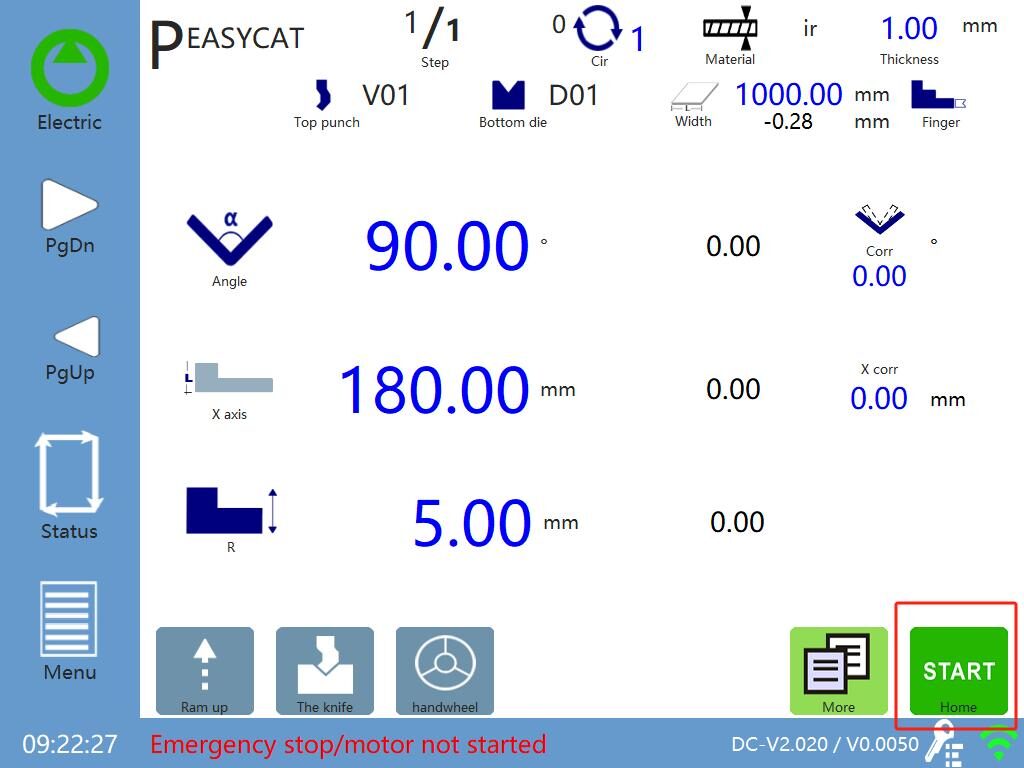
On the main programming interface, click the "Returning to the origin" button in the lower right corner to return the upper mold to the working set height. After completing the above operations, the tool alignment process is over, and the system can start normal operation.
1.2 Impostazioni dei parametri
On the main programming page, click on the menu icon to enter the parameter setting page.
·Working mode selection: Inching, single, continuous
Table 1-3 Working Model
Modello | Spiegare |
|---|---|
Inching mode | click start(or step on a foot) Start the program, step down the Ram and move downward, release and stop. Step on the Ram and move upward, then release and stop; when the speed change point is released, the X-axis back stop material will return to the original, so that it is easy to bend the same pedal down. Automatic step change of support system in point mode. |
Single mode | click start(or step on a foot) Start the program, step on the foot, slide down and press down to the bottom, after the holding time arrives, automatically return to the next step. |
Continuous mode | click start(or step down once) to start the program, step down, the slider moves down and presses down to the end, the pressure holding time reaches the automatic return, enter the next sequence, and so on, until all steps and all pieces have been executed. In continuous mode, you can set the continuous interval on the More Data Settings page |
<Remarks>
1) Point mode is used in calibration, single mode is used in normal operation, and auto cycle mode is used in testing machine.
2) In the "Manual Moving" and "X/Y/R Axis Navigation" teaching pictures, the mode automatically changes to the slow point mode, after exiting these pictures, it will automatically switch to the original mode.
3) If you first step on the switch, then step on the switch is invalid; unlock the switch, then step on the switch.
If the program does not start, step on it for the first time(Or press on the screen)It will start the program and step down again before moving downward.
In single mode or auto cycle mode, the Ram moves upward.If the return time is valid and the return time arrives (the Ram has not reached the upper dead point), the Ram will no longer move upward and enter the next step.

2、Click on the page A dialog box will pop up prompting the user to log in, please enter the correct password (0313),Click again You can start parameter setting:

X/Y/RSettings
On the parameter setting page, the operator can set the motion parameters of the X/Y axis (Y2/R axis is optional), as well as the pressure and slider related parameters during bending.
Click "R-axis is valid" to enable the R-axis, as shown below:
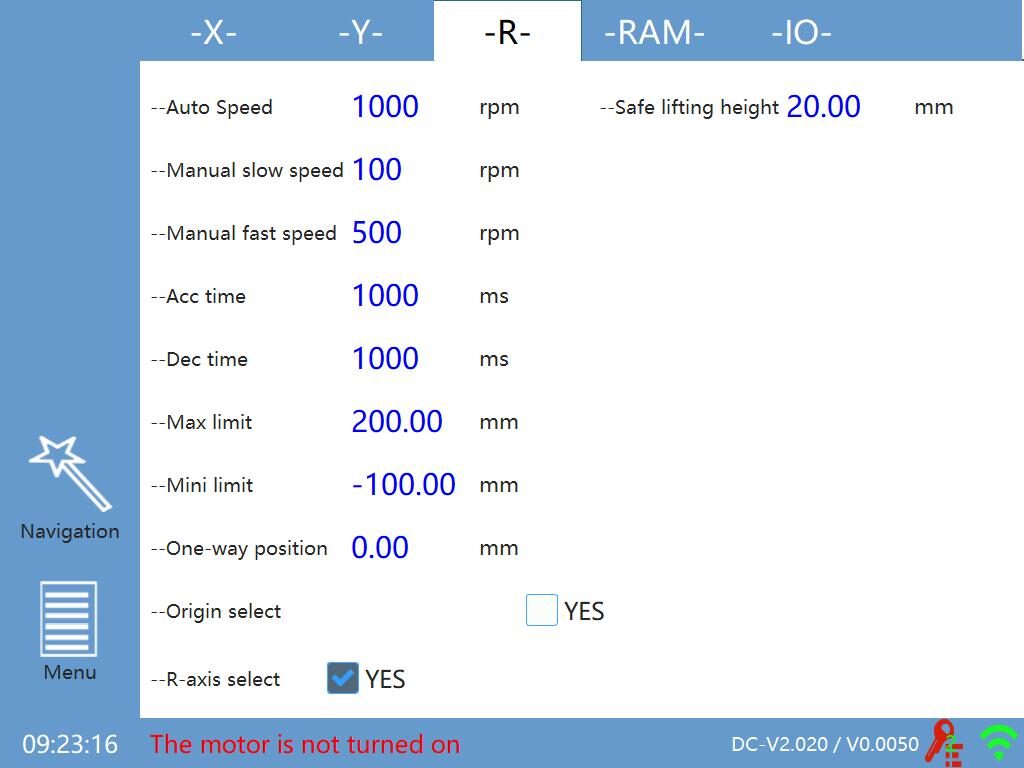
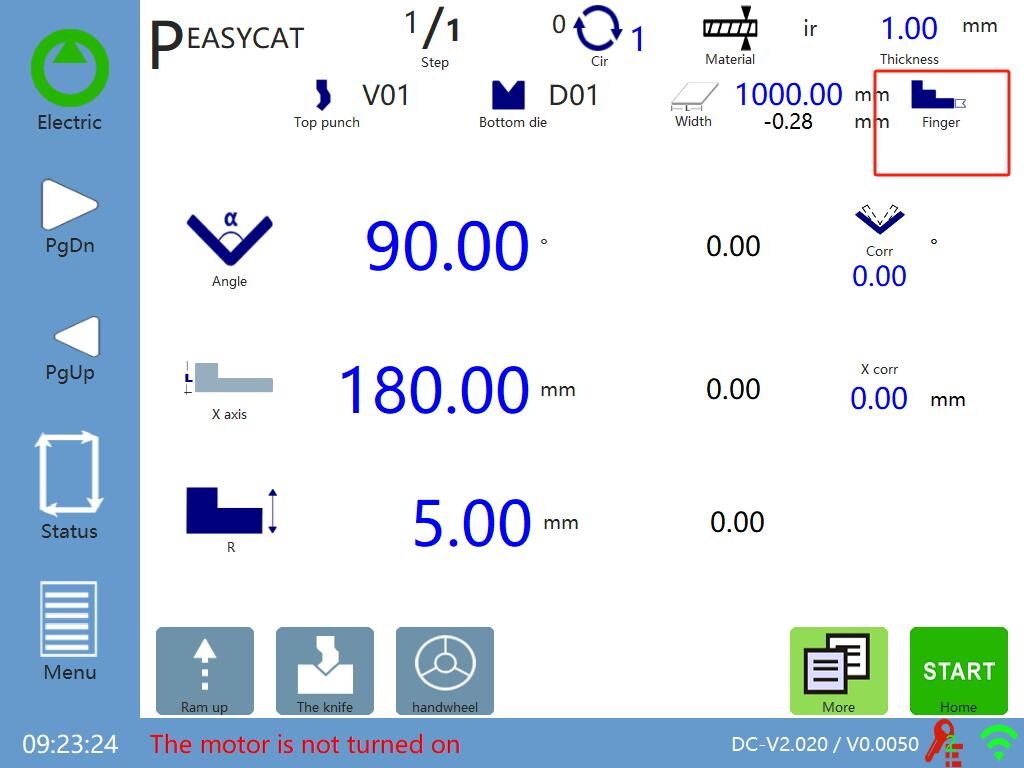
After the R-axis information and Settings icon is displayed on the programming page, click in the red box Each gear parameter of the stop finger can be set, which is convenient to choose different gear according to the workpiece processed during operation.

Slider setting
Operators can set relevant parameters in the "- RAM -" page, as shown in the following figure:
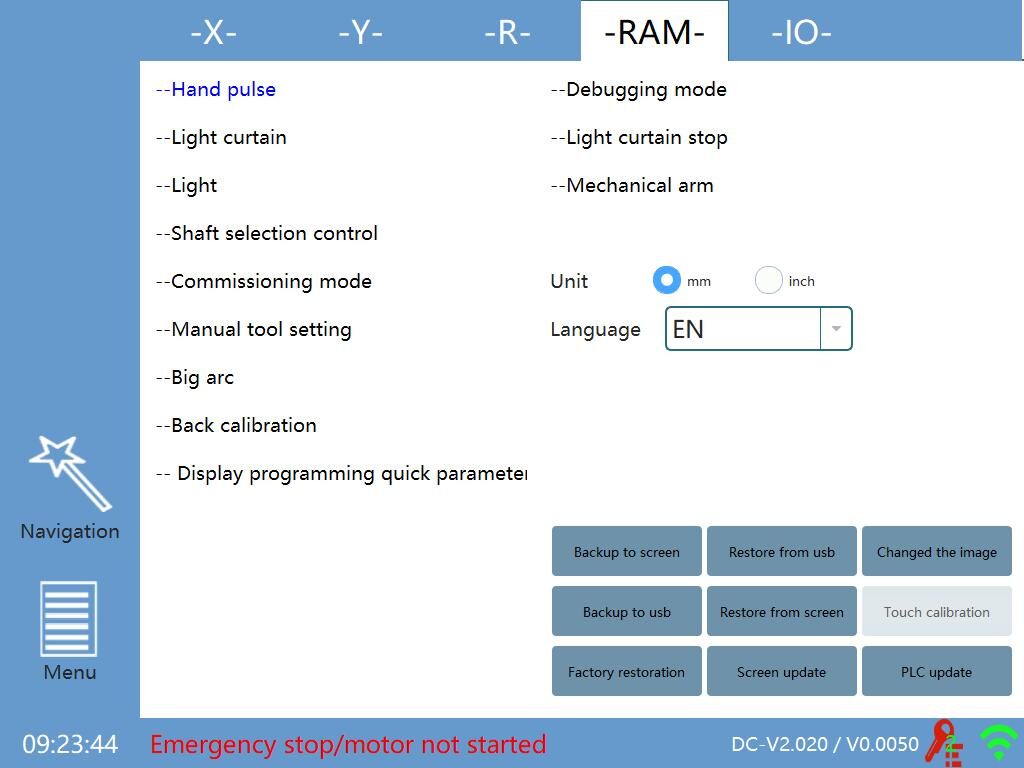
Hand pulse: Confirm whether the hand pulse is open
Light curtain: Whether there is a light curtain protection
Light: Whether there is lighting
Axis control selection: Select communication control or pulse control
Commissioning mode: continuous mode
Manual tool setting: Automatic or manual mode of mold closing
1.3 Machine state
The operator can access the machine status page in a variety of ways.
As shown below, on the programming homepage, click the icon,The machine status page is displayed.
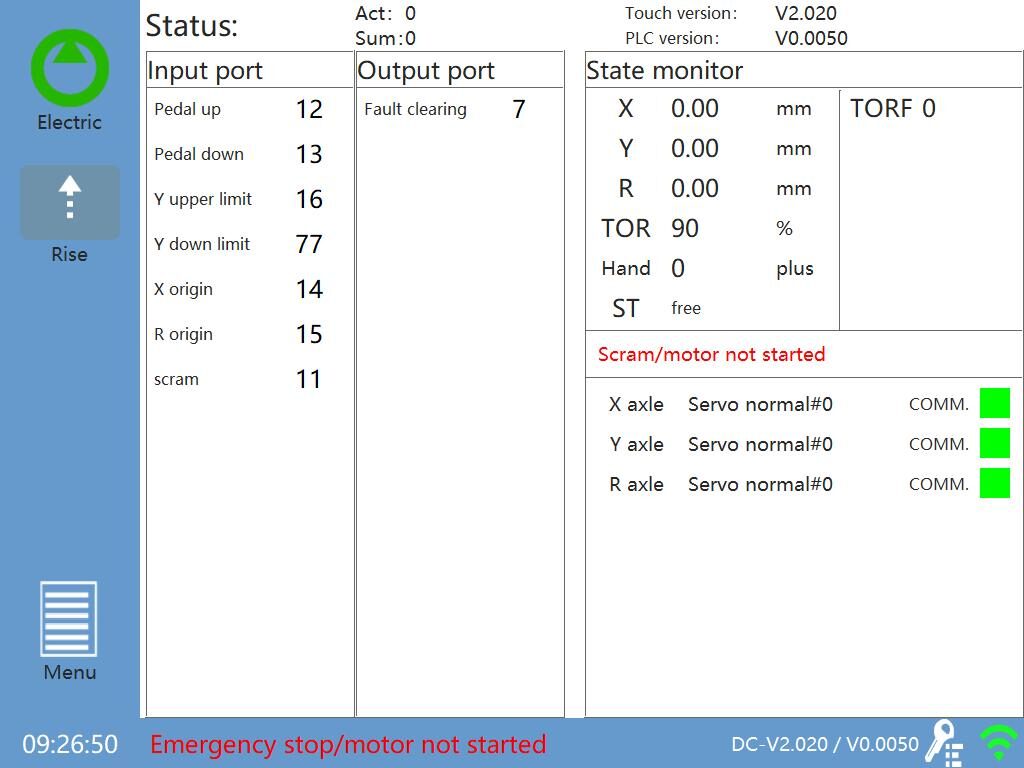
1.4 Manual movement
Operators can move Y axis (Ram), X axis (back shield) or R axis (finger shield) in manual mode.
1. Click on the menu icon in the main page of programming, click on "Manual Move" in the pop-up menu, and enter the manual page (to set the coordinates of X/Y/R axis reference point, you need to enter the password "0313"):

2. Setting up X-axis reference points
Utilizzare lo strumento di misurazione per misurare la lunghezza di una posizione di riferimento (dal punto di bloccaggio allo scudo posteriore), quindi scrivere il valore misurato nelle impostazioni sopra l'icona dello scudo posteriore.
3. Setting up the reference point of Y-axis
Step on the foot and press it down to the bottom. Then use the measuring tool to measure the length of a reference position (from the bottom of the Bottom die to the top of the Top punch).
Finally, write the measured value in the settings above the Ram icon.
4. Setting Reference Points for R-axis
The R-axis is used to select the finger shield, and the X-axis and R-axis can cooperate with the movement to prevent the collision of the die. Operators use measuring tools to measure the distance between the working plane of the Bottom die and the lower plane of the stop finger, and write the measured values in the above settings.
5. In the above screen - /++ for manual slow/fast movement, click the "move" button on the corresponding page, the X/Y/R axis will move the specified distance at the set speed, and then click the button again to stop the movement.
·Set the page at the reference point of the selected axis and hold it down+. The motor of the axis moves slowly in the direction of increasing count.
·Set the page at the reference point of the selected axis and hold it down-. The motor of the axis moves slowly in the direction of subtraction.
·Set the page at the reference point of the selected axis, press and hold++, and the motor of the axis moves rapidly in the direction of increasing count.
·Set the page at the reference point of the selected axis, press and hold--, and the motor of the axis moves rapidly in the direction of subtraction.
While moving the axis, the current value of the coordinates of the X/Y/R axis changes accordingly until it moves to the appropriate position.
Attention: This system has the function of setting position limit. If the given position exceeds the set minimum/maximum limit, the system will prompt "the given position exceeds the limit" and invalid start whenever it is pressed.
1.5 Mould management
The numerical control system automatically calculates the programming value of X/Y/R axis according to the selected die, bending angle and bending length.
Die parameters are the basis of system calculation and must be accurate
1.5.1 Top punch editing
1.Click on the module icon on the programming page and enter the die editing page.
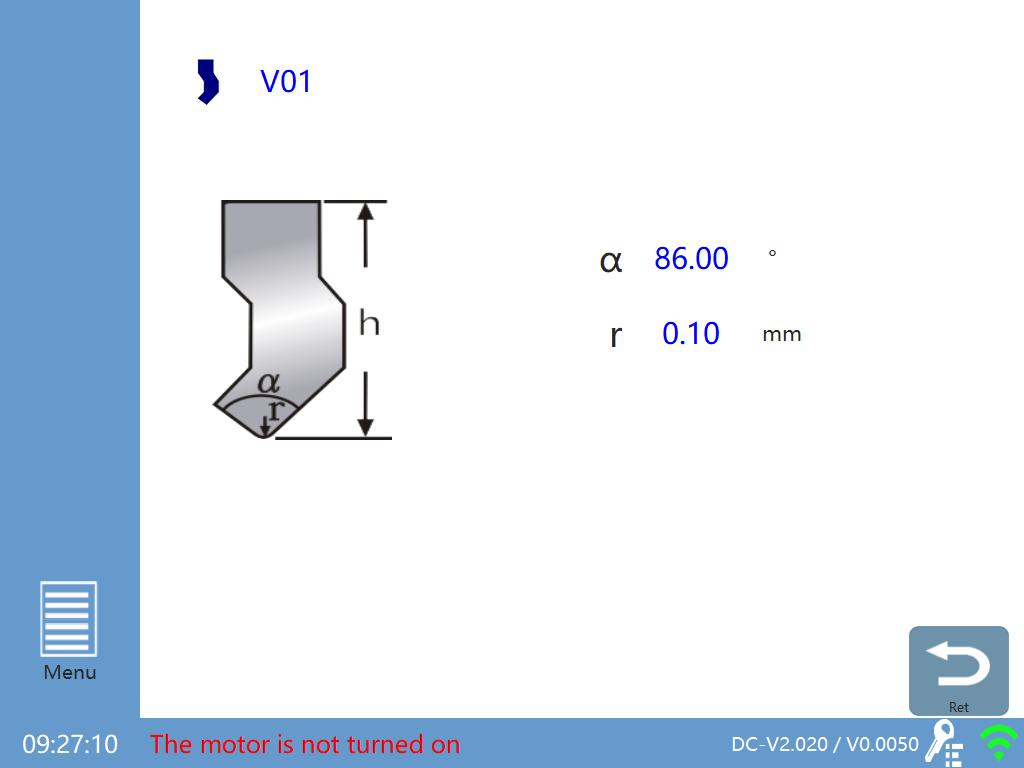
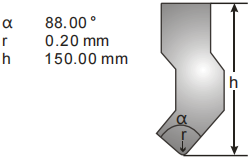
2.As an example, the upper model in the following figure is input (alpha: angle of upper model, r: chamfer, h: height of upper model)
3. After the data input is completed, click on the input field next to it and name the die according to its own naming rules. The current model can be saved with the given naming. (Up to 30 upper model information can be saved)
4. After completing the above steps, the upper model data will be automatically saved for subsequent use.
5.Click on the top Icon,Then click or you can browse saved die information.
6.Click on the top Icon,Return to the programming page.
1.5.2 Lower mode editing
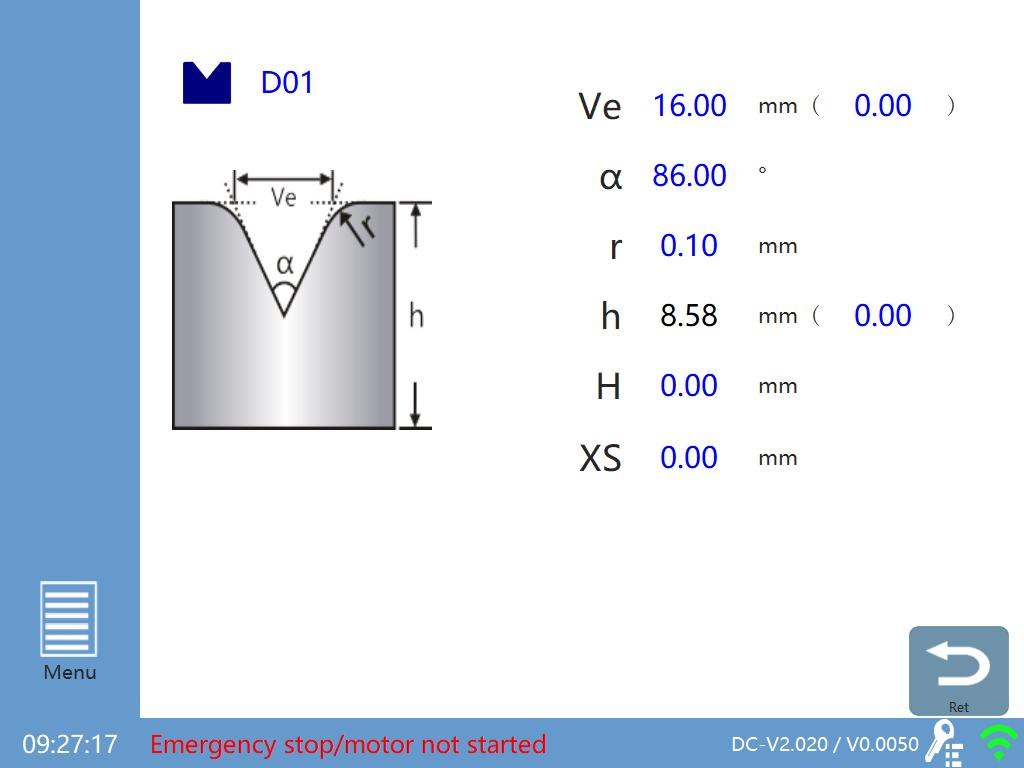
1、Click on the icon on the edit page,Enter the die editing page as follows:
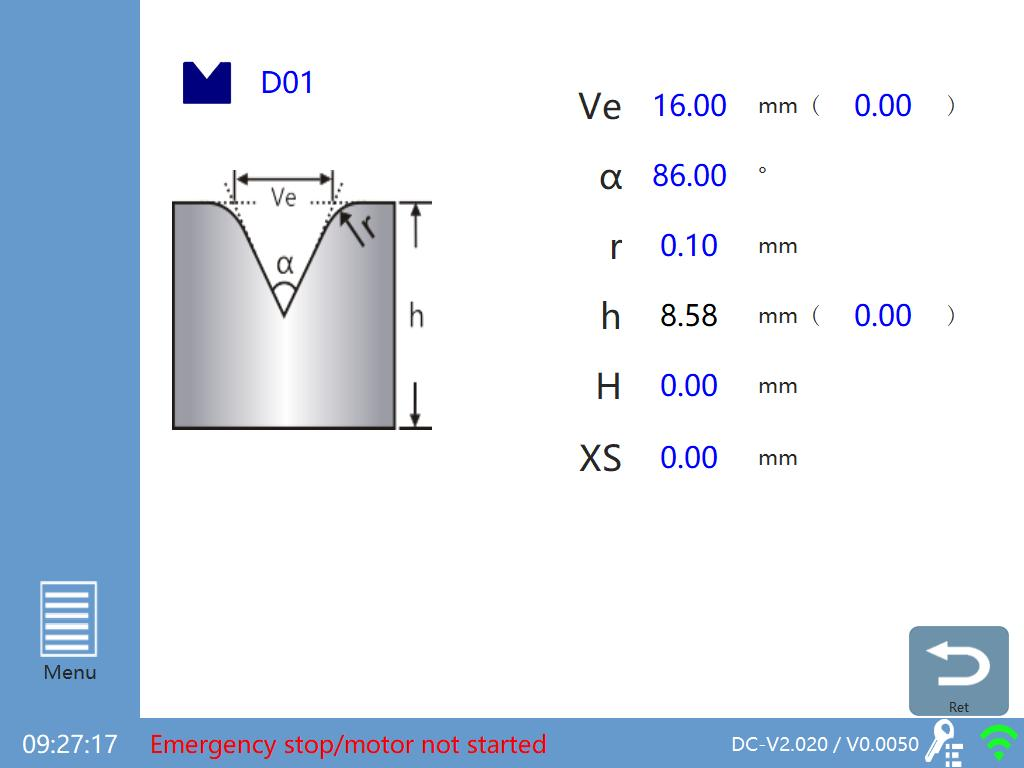
2、For example, input the lower mode data (Ve: width of opening, alpha: angle of opening, r: chamfer, h: height of lower mode)
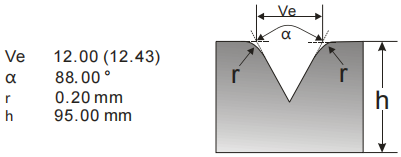
3.After the input of the lower model data is completed, Click next input field,Name the die according to its own naming rules, and save the current Bottom die with a name (up to 40 Bottom die information can be saved)
4. After completing the above steps, the lower model data will be automatically saved for subsequent use.
5.Click on the icon below,Then click or you can browse saved moulds.
6.Click Icon,return to the programming page.
2.Examples of application
Combinando il funzionamento del pannello e della macchina utensile, questo capitolo introduce come elaborare un pezzo che necessita di piegature multiple con un esempio specifico. Gli schizzi della posizione dell'asse X/Y e della direzione del movimento sono i seguenti:
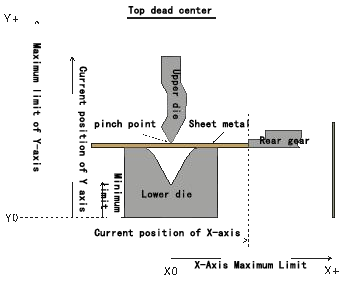
2.1 Example explanation
Questo esempio viene illustrato programmando i seguenti prodotti:
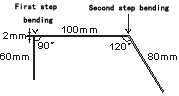
<Remarks>
1)If you encounter an emergency or need to return during the operation, you can click the button ↑ to return to the top dead point.
2)Se è impostata la distanza di concessione dell'antiretro, la concessione dell'antiretro inizia dopo l'arrivo del tempo di bloccaggio.
1、Select the Bottom die openingVe
Facendo riferimento alla tabella seguente, se lo spessore della piastra di piegatura è 2 mm, è necessario selezionare la scanalatura con 6 volte la larghezza dello spessore della piastra, ovvero la scanalatura con 12 mm della scanalatura di piegatura Ve.
Criteria for choosing the opening of the Bottom die
Workpiece thickness T(mm) | 0.6~2.5 | 3~8 | 10~50 |
Opening width of Bottom die W(mm) | 6T | 8T | 10T |
2、Bending step
Passaggio 1: l'angolo di piegatura è di 90,00 gradi, la lunghezza di piegatura L è di 60,00 mm
Passaggio 2: Angolo di piega 120,00 gradi, lunghezza di piega L 80,00 mm
3、Scelta della modalità di lavoro
Three working modes are available: point, single and auto cycle.
Tutte queste modalità di lavoro supportano il cambio passo automatico, che entrerà automaticamente nel passo successivo dopo l'esecuzione del primo passo di piegatura.
<Remarks> Please refer to the section "1.2 parameter settings" for details of the relevant working modes.
2.2 Choice of working mode
1、turn on electricity
Innanzitutto, accendere l'interruttore principale sull'armadietto, quindi avviare la pompa dell'olio (la macchina al momento non funziona).
<pay attention> Do not press the emergency stop button, otherwise the machine can not operate and the oil pump can not start.
2、Impostazioni di base del pannello di visualizzazione
1)Click on the icon on the main page of programming and input the thickness of the sheet (2mm)
2)Click on the die Icon or,Edit the die (top/bottom) on the pop-up page. The upper model is edited as follows:
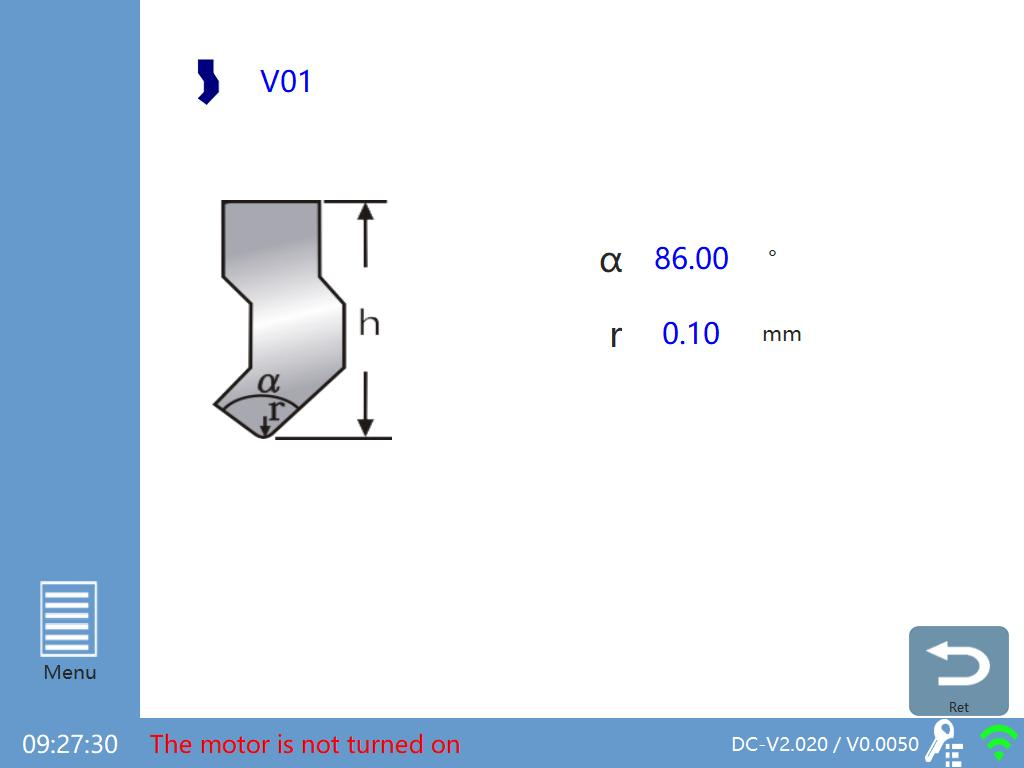
Il seguente modello viene modificato come segue:
3)Click on the icon more on the main programming page to enter more bending data: <Remarks> For more details, please refer to the section "More Data Settings Page 1.2.2".
3、Calibration by Manual Moving Mode
Operators can move Y axis (Ram), X axis (back shield) and R axis (finger shield) for position calibration in manual mode.
1)On the programming page, click on the menu icon and select "Manual Move" from the pop-up menu to enter the manual page.
2)Click - /++ or more button to move the selected Y axis (Ram)/ X axis (back shield)/ R axis (shield finger). When each axis is moved, the current value of the axis coordinates changes accordingly, and the movement can stop until it moves to the appropriate position.
3)Impostazione del punto di riferimento per l'asse X
Utilizzare lo strumento di misurazione per misurare la lunghezza di una posizione di riferimento (dal punto di bloccaggio allo scudo posteriore), quindi scrivere il valore misurato nelle impostazioni sopra l'icona dello scudo posteriore.
A method of measuring the length of the backstop from the clamping point to the backstop: after X-axis moves any distance, take a piece of sheet material and place it between the upper and Bottom dies, push the sheet material to hold back the backstop at one side; then step down, make the Top punch move downward to just press the sheet (a little strength but the sheet material is not deformed). Finally, step on the foot to make the Top punch return to the upper dead point, and measure the impression marks and the small plate. The vertical distance on the side of the back shield is the length from the clamping point to the back shield.
4)Setting the reference point of Y axis
Use the measuring tool to measure the length of a reference position (from the bottom of the Bottom die to the top of the Top punch), and then write the measured value in the settings above the back block icon.
A method of measuring the distance from the bottom of the Bottom die to the top of the Top punch: step on the foot to make the Top punch return to the upper dead point, move the Y axis for a certain distance at will, step on the foot, make the Top punch move downward to the Ram position (that is, the position can no longer be downward), step on the foot and do not put down, and finally measure the vertical distance from the bottom of the Bottom die to the top of the Top punch.
Appendix:
Analysis and Treatment of Common Problems
Table B-1 Common Problems Analysis and Treatment
Descrizione del problema | Reasons and Solutions |
|---|---|
Oil pump can't start | ·Whether the emergency stop button is loosened or not. ·Whether the feedback signal of the oil pump is normal or not. ·The oil pump icon on the touch screen needs to be pressed for 3 seconds. |
Stop after start of oil pump | ·Short self-closing delay of oil pump ·Loosening of coil of contactor ·Emergency stop of loosening feedback signal of oil pump |
Servo communication is not good | ·Is the communication line between CPU and backstop servo, servo and servo well connected? |
XY Axis Servo (Manual) Can't Move | ·Is Servo Communication Normal ·Whether the servo alarms (if the alarm can not be cleared, it needs to be re-energized). ·Whether the motor wires are connected or not. |
Y-axis servo (manual) cannot be moved | ·The Top punch is raised to the top (the upper dead point should have a signal) |
When the parameters are set, there is no response by pressing "START" or pedal switch on the touch screen. | ·Whether the emergency stop button is loosened or not. Whether the oil pump is open or not. ·Whether the servo system is normal or not. ·Whether the Top punch has been raised to the top (if the alarm cannot be given, it needs to be re-energized). |
Hydraulic brake does not move | ·Whether the emergency stop button is loosened or not ·Whether the oil pump starts or not ·Whether the gate is configured (setting parameters page on touch screen). |
Abnormal motion of Ram | ·Check whether the setting of pressure holding time "pressure relief time" and "return time" is reasonable. ·Whether the transmission point and dead point information is normal. ·Start-up of Oil Pump ·Release of emergency stop switch ·Hole-in hand moving screen (if XY axis is not debugged at this time) |
The bending angle error of the first cutter is very large(>5°) | ·Whether the cutter die is flat or not. ·Whether the height measured after depressurization is consistent with the height calculated by the system, if it is not consistent to re-axis calibration. ·Check whether the set parameters of the cutter die and the thickness of the plate are correct. ·Whether the accuracy of the selected screw (belt) is insufficient. ·Whether the thickness of the workpiece plate and the abrasive tool selected are reasonable or not, the first point in the section "2.1 Example Explanation" of the Selection Rules Reference Chapter ·The workpiece is made of steel with great elasticity, which needs angle compensation. |
X-axis automatic mode positioning is not in place | ·Whether the installation of the screw rods on both sides of the bending machine is not parallel leads to a fixed position of the motor; the X-axis can be moved throughout the manual movement to verify the existence of this problem. |
Wide Bending Angle Error | ·Check whether the machine pressure is enough |
Calibrate the angle, change a piece of sheet metal after the bending angle is not right | ·The bending parameters of sheets with different materials and widths are different, which should be set and compensated separately. |
Next Step Sequential Bending Angle Error | ·Whether the number of abrasives used in the next step has changed. |
Incorrect Angle Compensation Value | ·The safety height of the Bottom die has been exceeded, and the system automatically limits ([bending depth + compensation] > minimum height). |